
If you’re seeing the ERR_SSL_PROTOCOL_ERROR message while trying to visit a secure website connection, don’t panic.
This common browser issue usually means there’s a problem with the SSL certificate or how your browser handles the HTTPS protocol.
In this guide, we’ll show you exactly how to fix ERR_SSL_PROTOCOL_ERROR using easy, proven methods.
Whether you’re a site owner or a regular internet user, knowing the common causes — such as expired certificates, the wrong system time, or certain browser settings — can help you solve the problem quickly.
We’ll walk you through what the error means and share 10 straightforward fixes you can try right away. You’ll also learn how different browsers handle this error and how to troubleshoot it on both desktop and mobile devices.
By the end of this guide, you’ll have a full toolbox to solve the problem and boost your overall website security.
1. What Is ERR_SSL_PROTOCOL_ERROR?
The ERR_SSL_PROTOCOL_ERROR means your browser can’t create a secure website connection. When a browser tries to connect to a site using the HTTPS protocol, it needs to complete an SSL/TLS handshake.
This is where it checks the SSL certificate, matches the TLS protocol, and ensures it’s secure. When something breaks in that handshake, you’ll see an SSL connection error.
It could be due to incorrect cipher suites, HSTS configuration, or a certificate validity issue. Your browser blocks the page to protect you.
Once you know what’s causing the problem, you can work on fixing it. In the next sections, we’ll explore exactly how to identify and fix these errors, whether they’re browser-based or server-side.
2. Different Versions of the ERR_SSL_PROTOCOL_ERROR Message
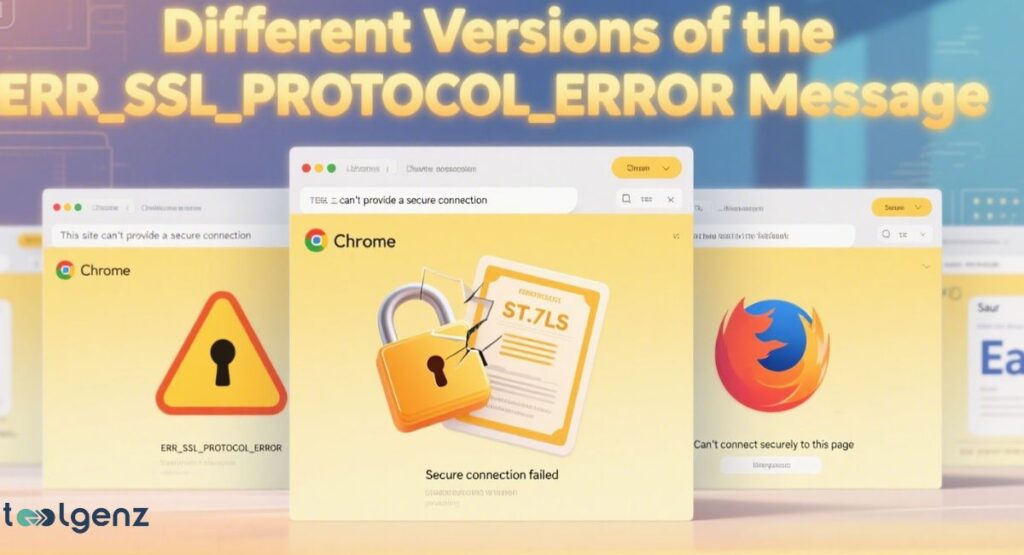
Depending on your browser or device, you might see different messages. Chrome might say: “This site can’t provide a secure connection.” Firefox could show “Secure connection failed.”
All of them point to the same SSL/TLS handshake failure. They often happen because of mismatched cipher suites, expired certificates, or outdated TLS support. Identifying the specific version helps in faster troubleshooting.
By recognizing how each browser communicates the problem, you can better pinpoint where the issue lies. It could be a misconfigured server, browser cache, or outdated browser security settings triggering the error message.
3. How Different Browsers Display ERR_SSL_PROTOCOL_ERROR
Browsers use different terms for this error.
Chrome SSL error usually appears as:
This site can’t provide a secure connection
ERR_SSL_PROTOCOL_ERROR
Firefox shows as:
Secure connection failed
SSL_ERROR_PROTOCOL_VERSION_ALERT
Safari and Edge also give their own messages. But they all mean there’s a problem with the HTTPS connection.
In most cases, it comes down to an SSL/TLS handshake problem, your browser’s security setup, or the site’s certificate.
4. A Quick Guide: How to Fix ‘This Site Can’t Provide a Secure Connection’ or ERR_SSL_PROTOCOL_ERROR
Before you go deep, try these quick fixes:
- Clear browser cache and cookies
- Clear SSL state from your system
- Restart your device and router
- Check system date and time
- Disable any VPN connection issues or proxy configuration
In some cases, just updating your browser or turning off certain extensions can fix it.
5. 10 Proven Solutions to Fix ERR_SSL_PROTOCOL_ERROR
Here are 10 working fixes. Use them one by one until the error is gone.
1. Clear SSL State and Browser Cache
Go to your Chrome settings, search for “SSL,” and click Clear SSL state. Then clear browser cache completely. This clears out old data and re-establishes a fresh, secure connection.
2. Disable Chrome QUIC Protocol
The QUIC protocol disable step helps when Google’s experimental transport protocol causes issues. Open Chrome, go to chrome://flags, search QUIC, and turn it off.
3. Sync Date and Time Settings
Check system date and time. If your device clock is wrong, it can block certificate validity checks. Sync it with the internet clock.
4. Disable Antivirus or Firewall Settings
Your antivirus settings or firewall settings might block HTTPS. Disable antivirus for a moment and reload the site. If it works, adjust your security tool settings.
5. Check and Update Your SSL Certificate
If you run a site, verify SSL certificate on your hosting panel. Check certificate validity, expiration, and cipher suite mismatch. Tools like SSL checker tool or Let’s Encrypt help here.
6. Reset Network Settings
Reset your DNS, IP, and TCP settings. On Windows, use Command Prompt:
ipconfig /flushdns
netsh int ip reset
netsh winsock reset
This can solve issues with your DNS or proxy settings.
7. Use a Different DNS Server
Switch to Google DNS (8.8.8.8) or Cloudflare DNS (1.1.1.1). This can often clear up problems with your DNS or secure connections.
8. Update Your Browser
A simple browser update can fix security bugs and improve TLS version compatibility. Always use the latest version of Chrome or Firefox.
9. Remove Chrome Extensions
Some browser extensions interfere with SSL. Go to settings, remove suspicious ones, and refresh the site. Disable browser extensions you don’t use.
10. Check Server for SSL Misconfigurations
Look at your server logs and server configuration. You may have an SSL certificate misconfiguration, outdated cipher suites, or wrong HSTS settings.
6. How to Fix ERR_SSL_PROTOCOL_ERROR on Mobile Devices
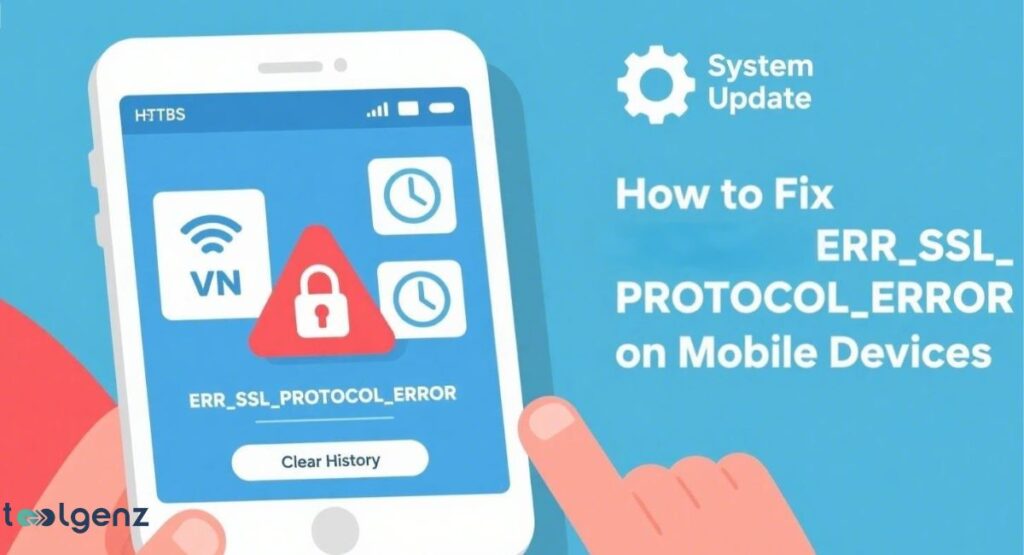
On phones, the error can happen too. First, clear your mobile browser history and data. This works like clearing browser cache on desktops.
Also, restart your phone and Wi-Fi. Make sure your phone’s operating system update is complete. Check if you’re on a stable internet connection.
If you’re using a VPN, turn it off. Some VPNs can interfere with secure HTTPS connections.
If the issue continues, try switching to a different browser or disabling any browser extensions on your mobile device. Also, review your phone’s date and time settings, as incorrect system time can break the SSL/TLS handshake.
7. More Tips and Things to Think About
Sometimes it’s your web hosting causing trouble. Some low-cost hosting plans skimp on security features or don’t fully support the latest TLS protocols.
Pick a provider with Cloudflare integration and automatic Let’s Encrypt certificates.
When moving a site, website migration SSL issues are common. Always double-check your HSTS configuration and run a scan with an SSL checker tool.
You should also inspect the server configuration and check server logs for signs of failed SSL/TLS handshakes. Many issues happen silently on the server, especially when cipher suite mismatch or certificate validity errors go unnoticed.
8. How AI Is Helping with Website Security and Problem-Solving
AI tools now help detect and fix SSL/TLS handshake failure before users even see them. Hosting providers use AI to monitor server logs for website server issues.
AI can handle routine jobs like renewing certificates, checking TLS compatibility, and fine-tuning security settings — so you don’t have to.
Platforms like Cloudflare SSL even use AI to manage security. Some systems even scan developer tool data to spot possible HTTPS issues before they cause trouble.
This proactive monitoring helps reduce downtime and improves overall secure website connection reliability.
9. Summary
The ERR_SSL_PROTOCOL_ERROR is a common issue, but easy to fix. It usually involves SSL certificate misconfiguration, clearing SSL state, or problems with your browser security settings.
We covered how to fix this on both desktops and mobiles. From browser updates to checking server configuration, each step improves your secure website connection.
It’s worth checking your DNS, proxy settings, and internet connection from time to time. These basic checks help prevent future SSL/TLS handshake failures and ensure smooth, secure browsing every time.
10. Final Thoughts
Fixing HTTPS connection issues keeps your site safe and user-friendly. Always monitor your certificate validity, update your browser, and use tools like SSL checker tool.
If you’re hosting a site, make sure you have proper server configuration, a valid Let’s Encrypt certificate, and Cloudflare integration. These steps can help prevent future SSL/TLS handshake problems.
Also, don’t overlook your HSTS configuration and cipher suite compatibility during regular maintenance. A quick review of these settings now and then can keep SSL errors at bay and help your site run smoothly.
FAQs
1. How to fix error code ERR_SSL_PROTOCOL_ERROR?
You can fix it by clearing your browser cache, updating your browser, checking your SSL certificate, and ensuring proper server configuration.
2. How to fix ERR_SSL_PROTOCOL_ERROR by setting the correct date and time?
Make sure your device’s system time and date are accurate; incorrect settings can break the SSL/TLS handshake and cause secure connection errors.
3. How to fix err SSL version?
Enable supported TLS versions in your browser and server settings, and disable outdated protocols like SSL 3.0 for a secure connection.
4. How to fix SSL security error?
Check your SSL certificate for validity, update your browser, disable conflicting extensions, and verify your firewall or antivirus settings.
5. What is the cause of ERR_SSL_PROTOCOL_ERROR?
It’s usually caused by an expired or misconfigured SSL certificate, outdated browser or OS, incorrect system time, or insecure network settings.