

Are you frustrated with Zoom not working right before an important meeting? You’re not alone.
Whether it’s Zoom audio problems, Zoom screen share not working, or your webcam not working in Zoom, thousands of users experience these hiccups every day.
In this Ultimate Zoom Troubleshooting Guide, we’ll walk you through practical solutions to fix Zoom problems yourself—without needing a tech expert.
We’ve gathered the most effective methods to handle common Zoom problems, improve your connection, and prevent future glitches.
From lag and crashes to email invite issues, this guide has you covered. Let’s make your Zoom meetings smooth and stress-free again.
These fixes apply whether you’re using Zoom on Windows, Mac, or mobile. We’ll also look at what to do if Zoom won’t start, how to fix crashing, and steps to get your chat and screen sharing working again.
Is Zoom Down or Is It Just Me?
The first step when Zoom not working is to check the Zoom service status. Sometimes, Zoom has outages that affect users across the country.
You can visit the official Zoom Status Page to see if Zoom is down. If the issue isn’t global, you may need to run through other Zoom troubleshooting steps.
Other ways to confirm if Zoom is down include checking DownDetector or visiting Zoom’s social media channels for updates. If the problem is just with you, move on to the rest of this guide to fix Zoom problems yourself.
You can also ask coworkers if they’re facing the same zoom problems. If not, the problem might be with your device or network. Knowing the scope helps you decide whether to wait or begin troubleshooting right away.
Common Audio and Video Problems on Zoom
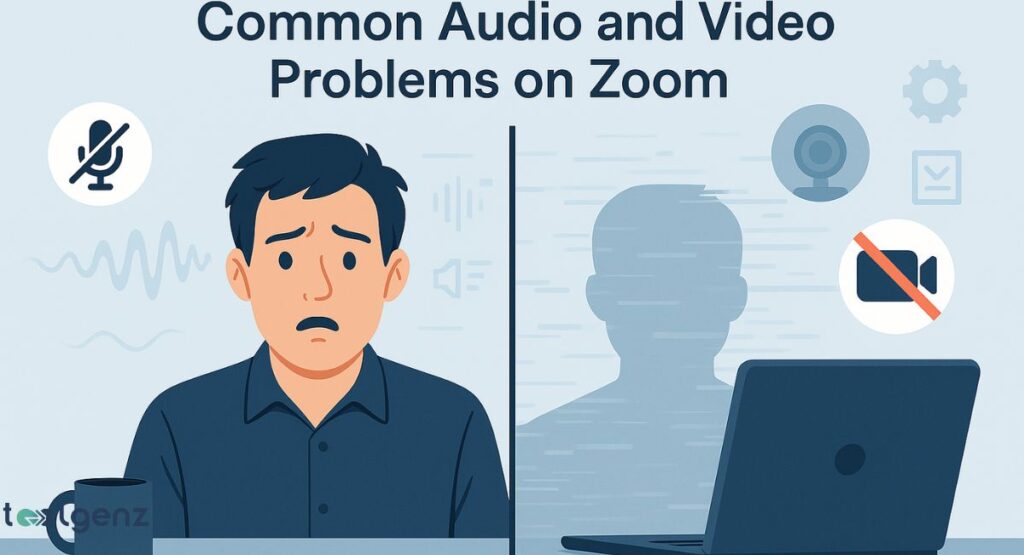
If your webcam not working in Zoom or your microphone stays silent, the problem could be permissions, device conflicts, or incorrect settings.
You should first test your audio and video in Zoom through the settings before joining a meeting. Check that your microphone and camera are selected and not muted.
If you still can’t hear others or they can’t hear you, leave computer audio and rejoin it. For camera issues, on Windows 10 or 11, make sure Zoom has permission to use your camera.
Mac users should allow Zoom Mac camera access in system preferences. These Audio and video glitches are by far the most common issues people run into on Zoom.
You might also want to restart your device or update your drivers. Sometimes, a simple Zoom update can resolve these glitches instantly. If problems persist, try the browser version of Zoom to isolate software conflicts.
Why Zoom Lags, Freezes, or Crashes During Meetings
If you’re experiencing Zoom problems during meetings, it might be your device, background apps, or internet connection.
Too many open applications can slow down Zoom’s performance. Make sure to close heavy programs and tabs before joining.
Also, turn off HD video in your Zoom settings to reduce bandwidth usage. Try moving closer to your Wi-Fi router or use a wired connection for better stability.
If nothing helps, check your internet connection speed or restart your modem to refresh the signal.
Also, check your internet connection speed. Use tools like Speedtest to ensure you have at least 3 Mbps upload and download.
A weak Wi-Fi signal often causes Zoom screen freeze or crashing. You can also turn off HD video in Zoom settings to improve performance.
| Problem | Possible Fix |
| Zoom crashing | Update Zoom, restart PC |
| Lag during meetings | Close background apps |
| Zoom freezing | Lower video resolution |
| Zoom update problems | Reinstall Zoom, check auto-updates |
Screen Sharing Issues on Zoom and How to Fix Them
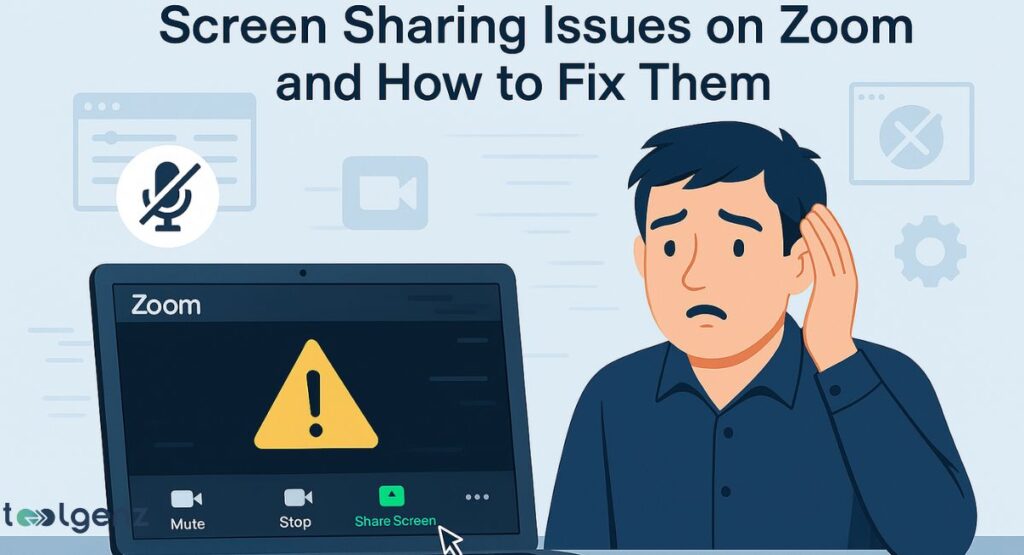
Sometimes Zoom screen share not working is due to missing permissions or outdated software.
Always check your Zoom settings before screen sharing. On macOS, allow screen recording permissions from system preferences.
If you request remote control and it doesn’t work, check if the host has enabled the option.
If Zoom remote control not working, make sure you’re not using the browser version, which limits functionality.
And if your screen goes black while sharing, it’s often due to graphics card settings.
You can also update your graphics drivers and try switching from GPU acceleration to system default.
Once you’ve adjusted your settings, close Zoom completely and open it again — that simple step fixes more glitches than you might think.
Not Receiving Zoom Emails or Meeting Invites
If you’re not getting emails from Zoom, like invites or confirmations, start by checking your spam or junk folders. This is one of the most common reasons for Zoom email not arriving.
Also, some work or school domains block Zoom’s email servers. In such cases, ask your IT team to whitelist Zoom addresses.
For Gmail or Outlook users in the USA, adding Zoom as a contact helps. These steps will help resolve Zoom not working due to email delivery issues.
Still no luck? Switching to a different email or signing in with Google might solve it. And if you suspect delays, Zoom’s support page can resend your invite.
Zoom Meeting Recording Isn’t Working
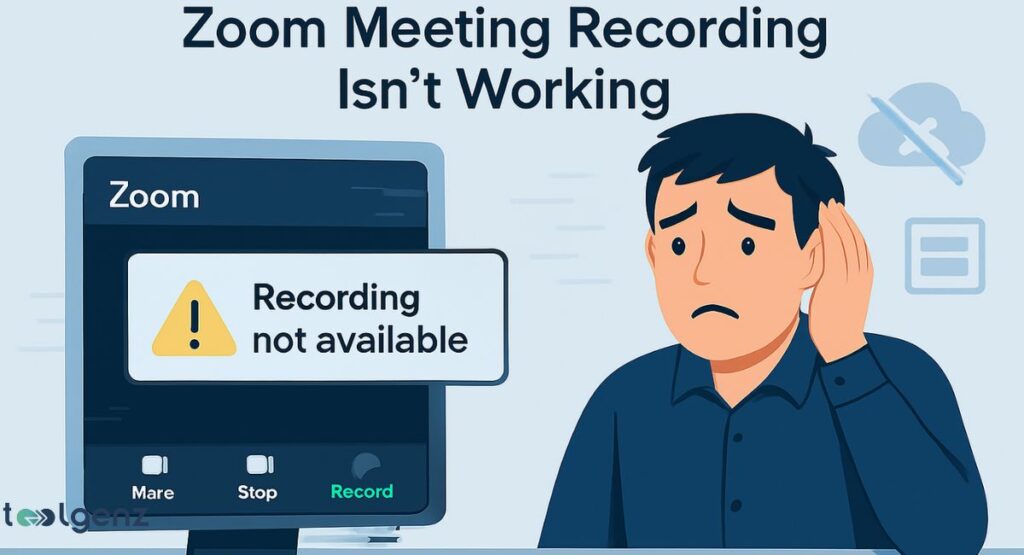
There are two ways to record Zoom: local and cloud. If your Zoom meeting won’t record, make sure you’re the host or co-host. If you don’t see the record button, ask the host to grant you Zoom recording permissions.
Also, ensure you have enough storage space if recording locally. If you’re a Mac user, you can also use screen recorder on Mac/Windows as a workaround. With those steps, you should be able to hit ‘Record’ without any more surprises.
If cloud recording still fails, check your Zoom settings configuration and ensure your plan includes cloud storage. Updating Zoom and restarting your device can also resolve hidden glitches.
Zoom Security Concerns and How to Stay Protected
Many users in the USA are still concerned about Zoom security issues, especially after events like Zoom-bombing. To increase safety, always enable waiting rooms, passcodes, and disable participant annotations.
For sensitive meetings, make sure to enable end-to-end encryption in your Zoom settings. You can also avoid unwanted disruptions by using Zoom-bombing prevention strategies like locking meetings after all participants have joined.
Staying updated with Zoom’s latest security patches and following recommended privacy practices will help you avoid most threats.
Regularly reviewing your meeting settings is also a good habit to maintain full control over your virtual space.
Tips for Improving Zoom Performance and Compatibility

One of the easiest ways to fix Zoom problems yourself is to try the browser version of Zoom when the desktop app fails. The browser version is lighter but has some feature limitations.
Also, check your system specs. Update your Zoom client, graphics drivers, and OS. On Zoom for Windows 10 / 11, enable compatibility mode if there are errors.
On Mac, adjust app permissions and restart after updates. These Zoom problems troubleshooting steps improve speed and reliability.
If issues persist, try uninstalling and reinstalling Zoom entirely. A fresh install can resolve hidden zoom problems or corrupted files that might be affecting performance.
Is Your Internet Causing Zoom Problems?
Many common Zoom problems come from poor internet connections. If Zoom keeps freezing or cutting off, you should check your internet connection for speed and stability.
Zoom recommends 1.5 Mbps for HD calls, but 3 Mbps or higher is ideal. For best performance, use an Ethernet cable instead of Wi-Fi. If you can’t, stay close to your router. This is a common fix for If the app keeps freezing or your calls lag.
You can also run a speed test before your meeting to ensure your connection meets Zoom’s requirements. If your internet is unstable, consider upgrading your plan or contacting your ISP for support.
Final Troubleshooting Checklist for Zoom Users
Before you join a Zoom meeting, run through this checklist to prevent issues. First, update Zoom and your operating system.
Second, check your Zoom settings for audio, video, and screen sharing. Always test your audio and video in Zoom before going live.
If you’re hosting, confirm alternative host permissions and Zoom scheduling privilege. Also, make sure the chat window not showing in Zoom is visible by resetting your layout.
If you cannot access breakout rooms, talk to the host or admin. If all else fails, look into Zoom live training or consider Zoom alternatives for a smoother experience.
If you want to strengthen your tech problem-solving skills, consider exploring these top IT support certifications. Being proactive ensures a more professional and stress-free experience for both you and your participants.
Final Thoughts
By now, you’ve got a toolkit for Zoom problems — whether it’s polls acting up or a meeting window that just won’t behave.
Whether you’re facing Zoom plugin Chrome Firefox troubles or Zoom co-host features not appearing, you can now resolve them quickly.
Remember, when Zoom problems, don’t panic. Just follow this easy guide to fix Zoom problems yourself, and you’ll be back in your meeting in no time.
With these solutions at your fingertips, you’ll spend less time fixing issues and more time focusing on what matters—your communication, collaboration, and productivity.
FAQS
Are there zoom problems today?
You can check Zoom’s server status at the official Zoom Status Page. If no outages are reported, the issue likely lies with your connection or device.
Why is Zoom not working?
Zoom often fails due to outdated software, poor internet, incorrect permissions, or misconfigured Zoom settings.
What is the biggest problem with Zoom?
The most common issue is audio/video failure caused by device settings, access permissions, or hardware conflicts.
How do I reset my Zoom?
Uninstall the Zoom app on your device, reinstall the latest version from the official website, and then sign in again.
Why did everyone stop using Zoom?
Many users switched due to security concerns and past Zoom security issues, along with broader remote collaboration options now available.